Start with a business question. Prepare data AI can actually use.
Follow the product screens in order: select source data, define business goals, clarify rules, build and validate result tables, then sync selected tables to AskTable.
These screenshots show the current Chinese desktop interface. Open any image to inspect the original at full size.Create a workspace and select source data
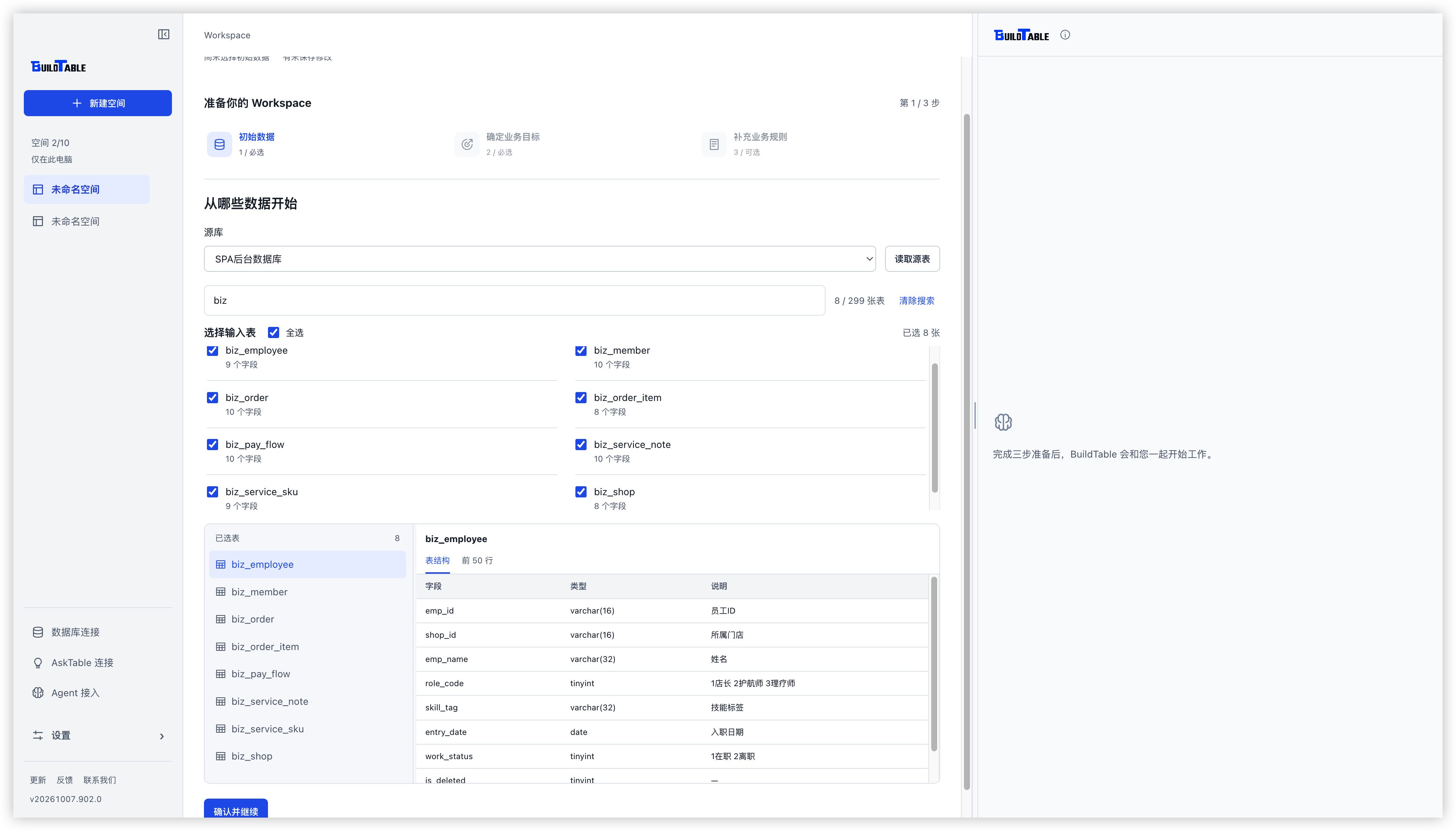
Connect an existing database and choose the tables relevant to your business questions. Inspect fields and previews before moving on.
01–02 / 10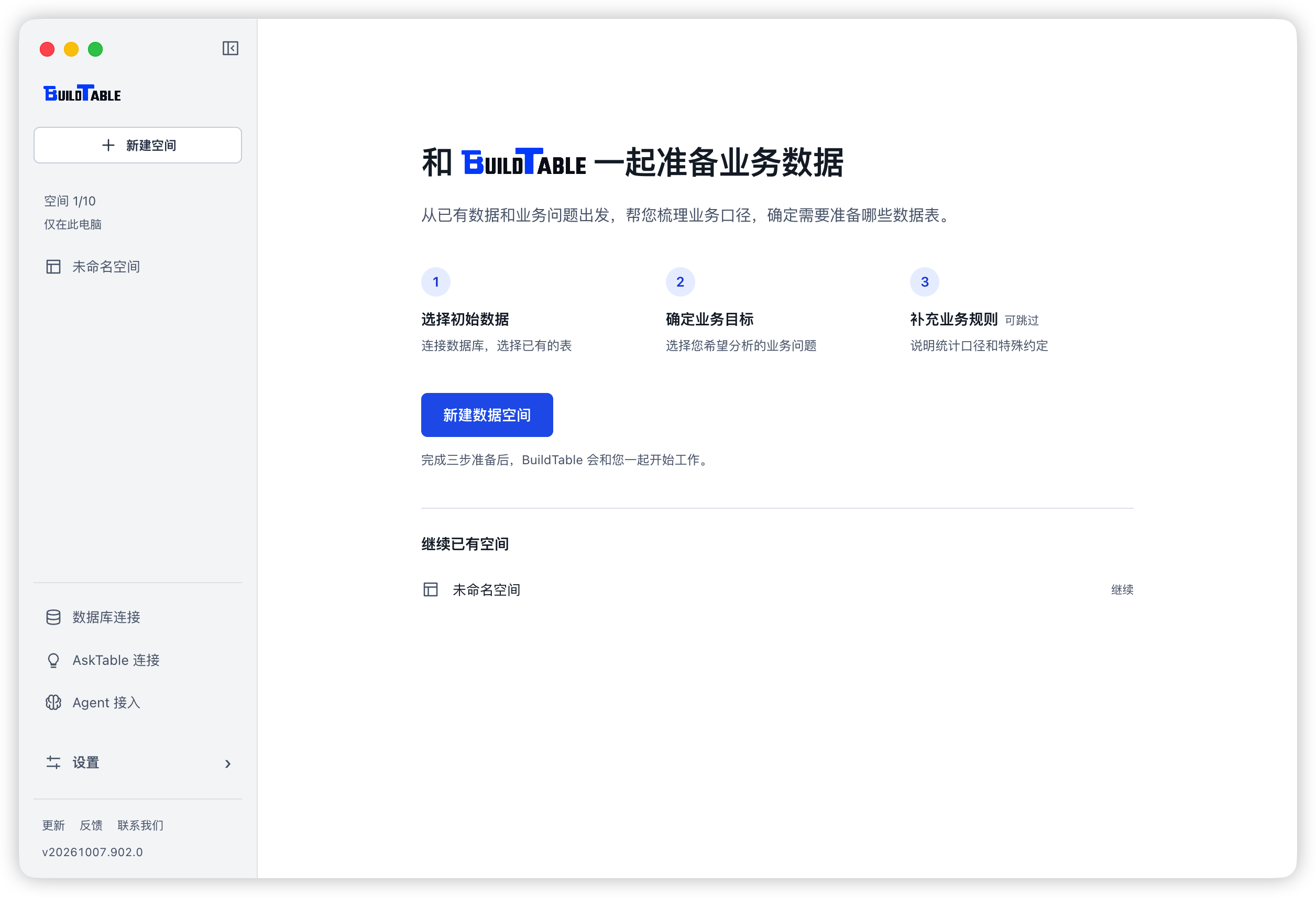 Open full-size image
 Open full-size image
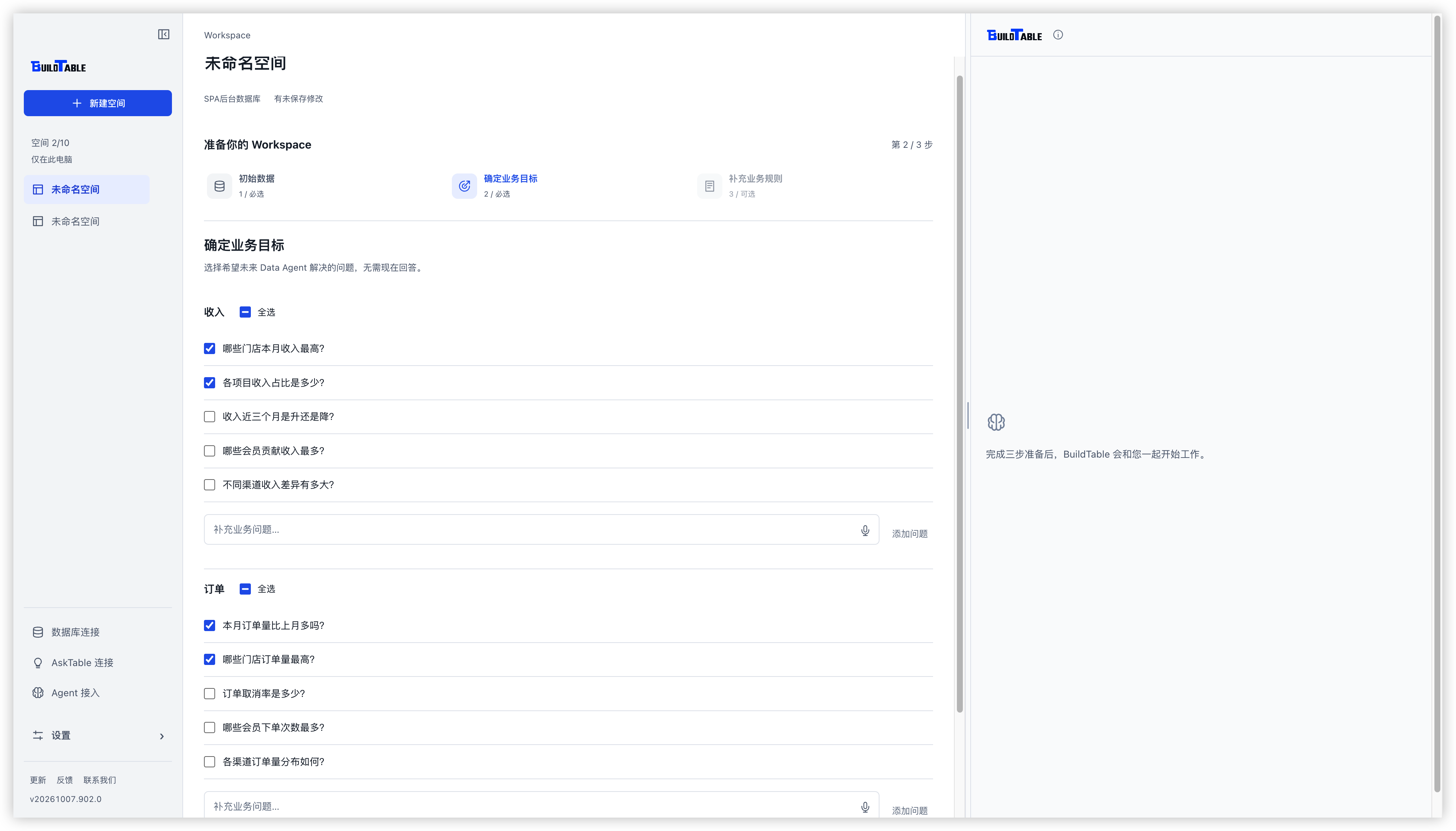
Define the questions you need answered
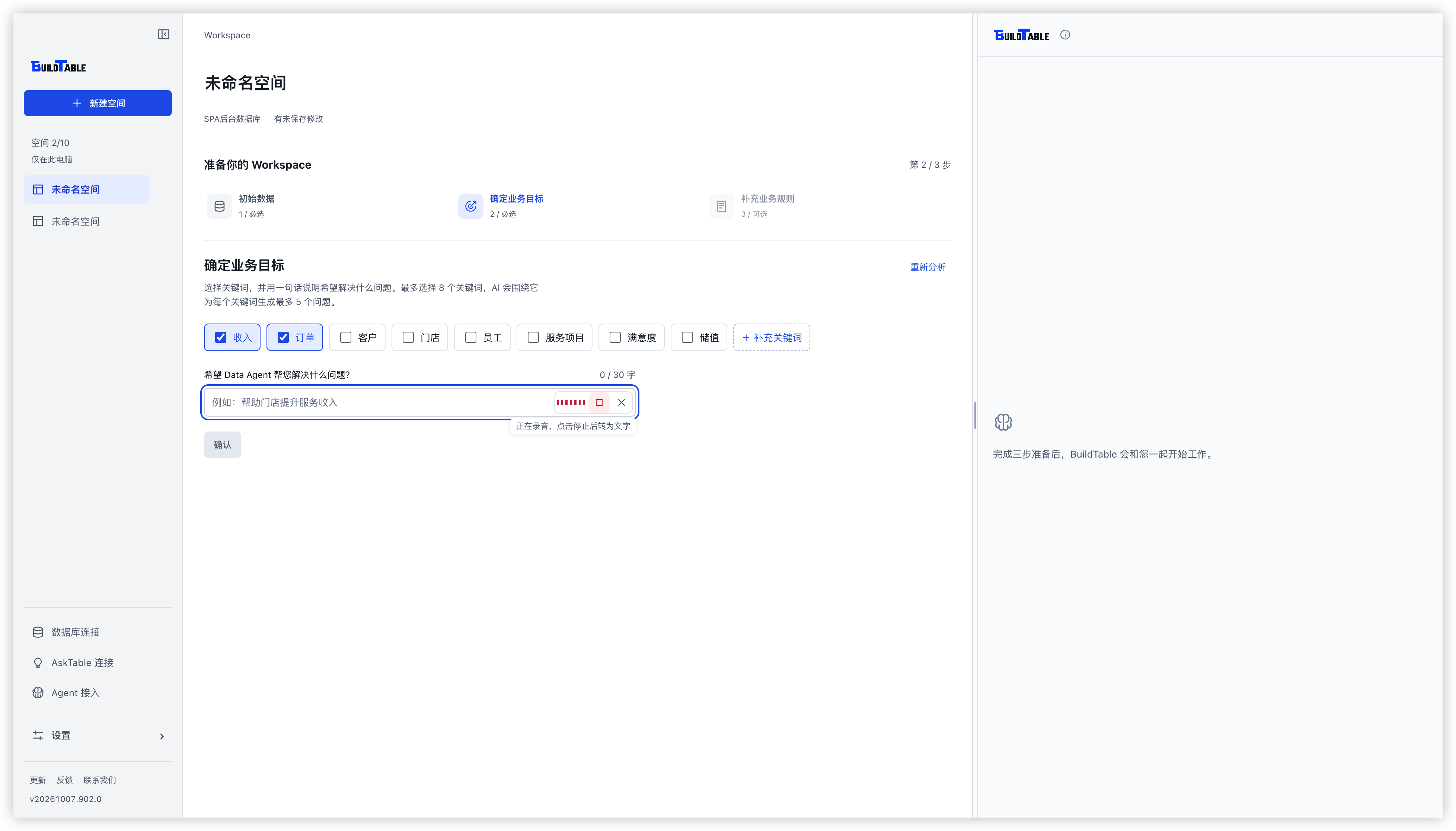
BuildTable analyzes business keywords from the selected data. Choose relevant keywords, describe your goal in a sentence or by voice, and select the generated questions that matter.
03–05 / 10 Open full-size image
 Open full-size image
 Open full-size image
Confirm rules and metric definitions
Choose where result tables will be saved and review data rules. When a metric such as revenue has several possible definitions, confirm the business meaning before proceeding.
06–07 / 10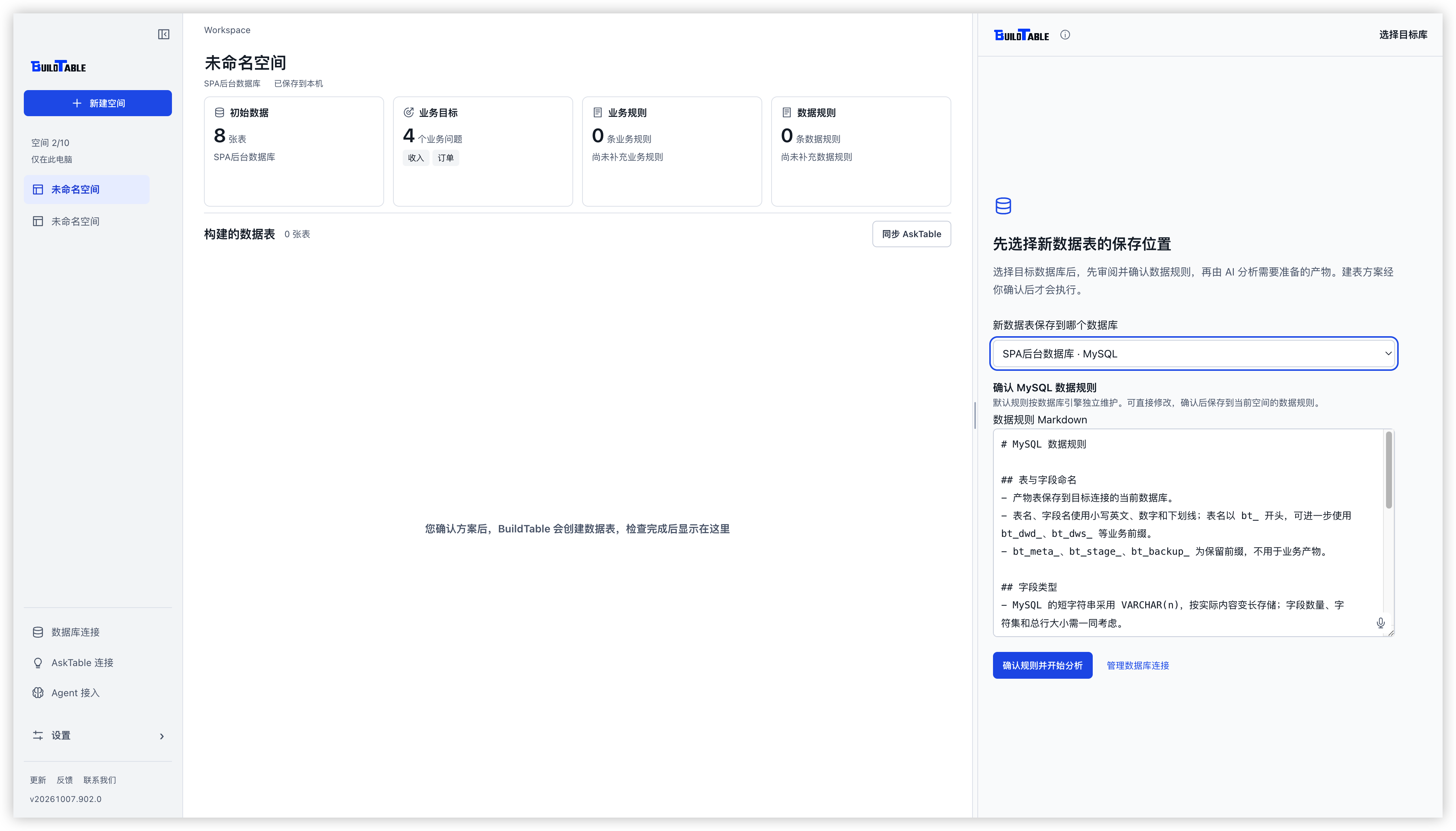 Open full-size image
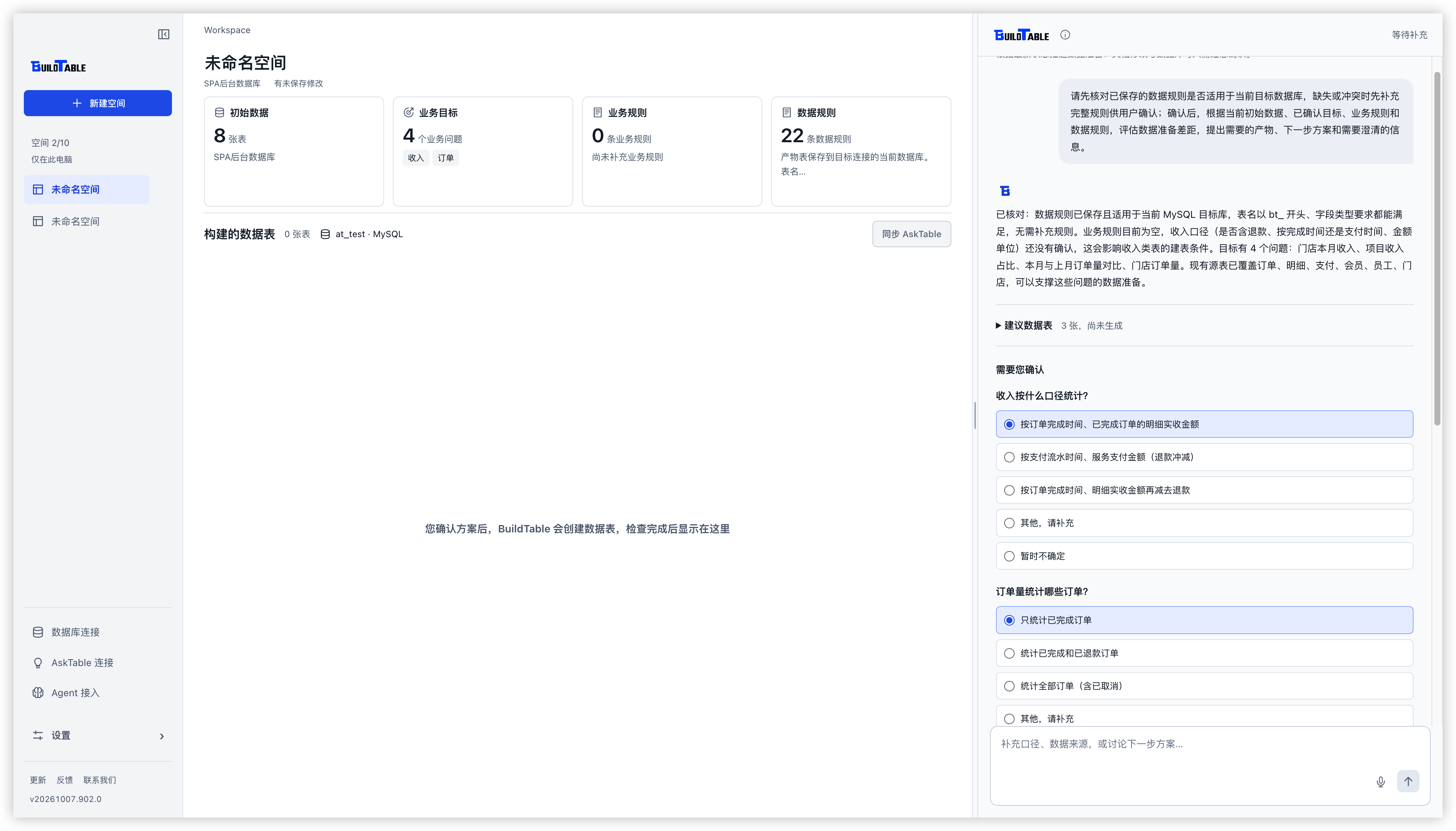 Open full-size image
Build result tables and inspect the evidence
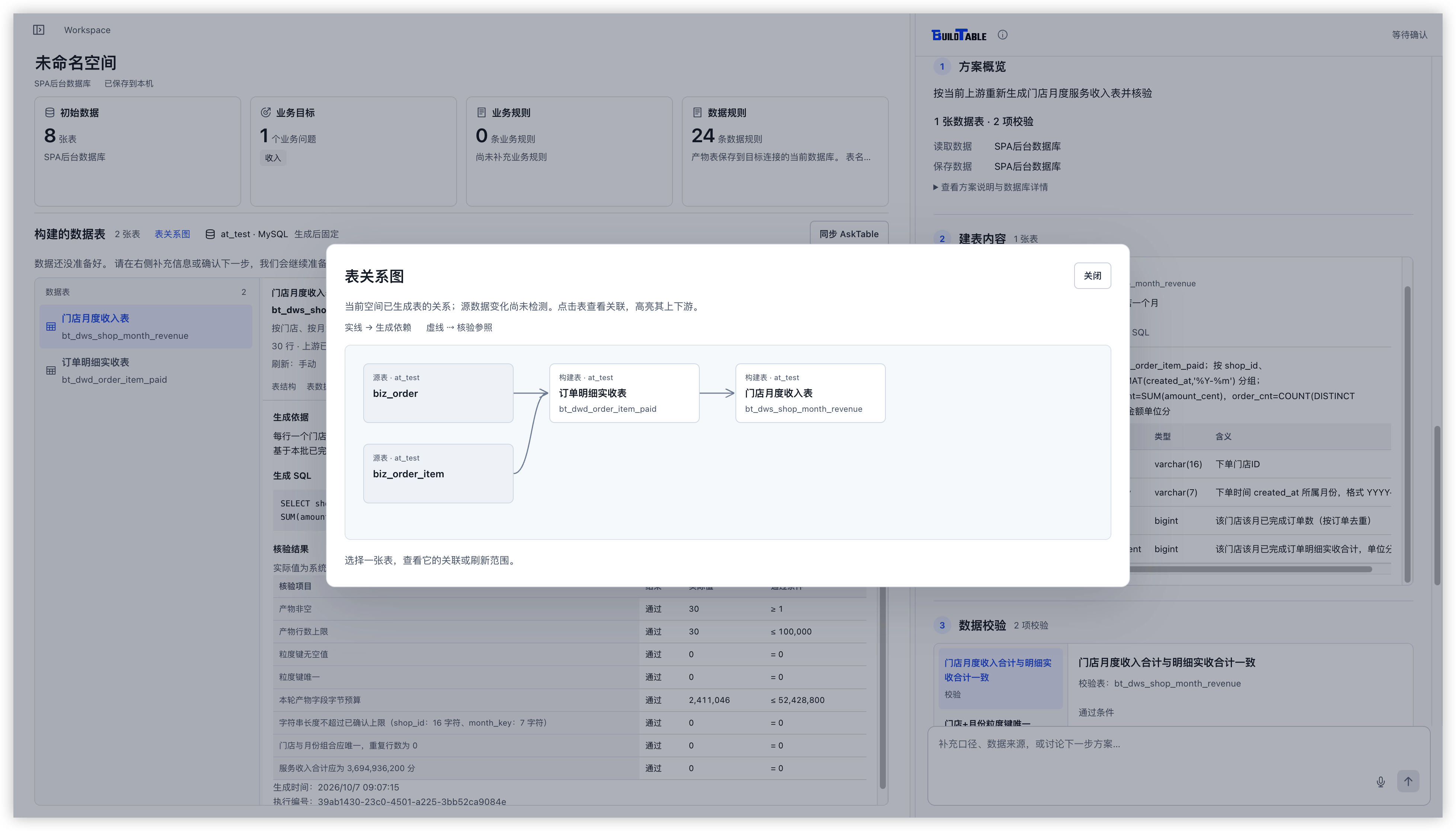
Review the proposed tables, fields, SQL, and validation checks. Use the relationship view to trace dependencies from source tables to final outputs.
08–09 / 10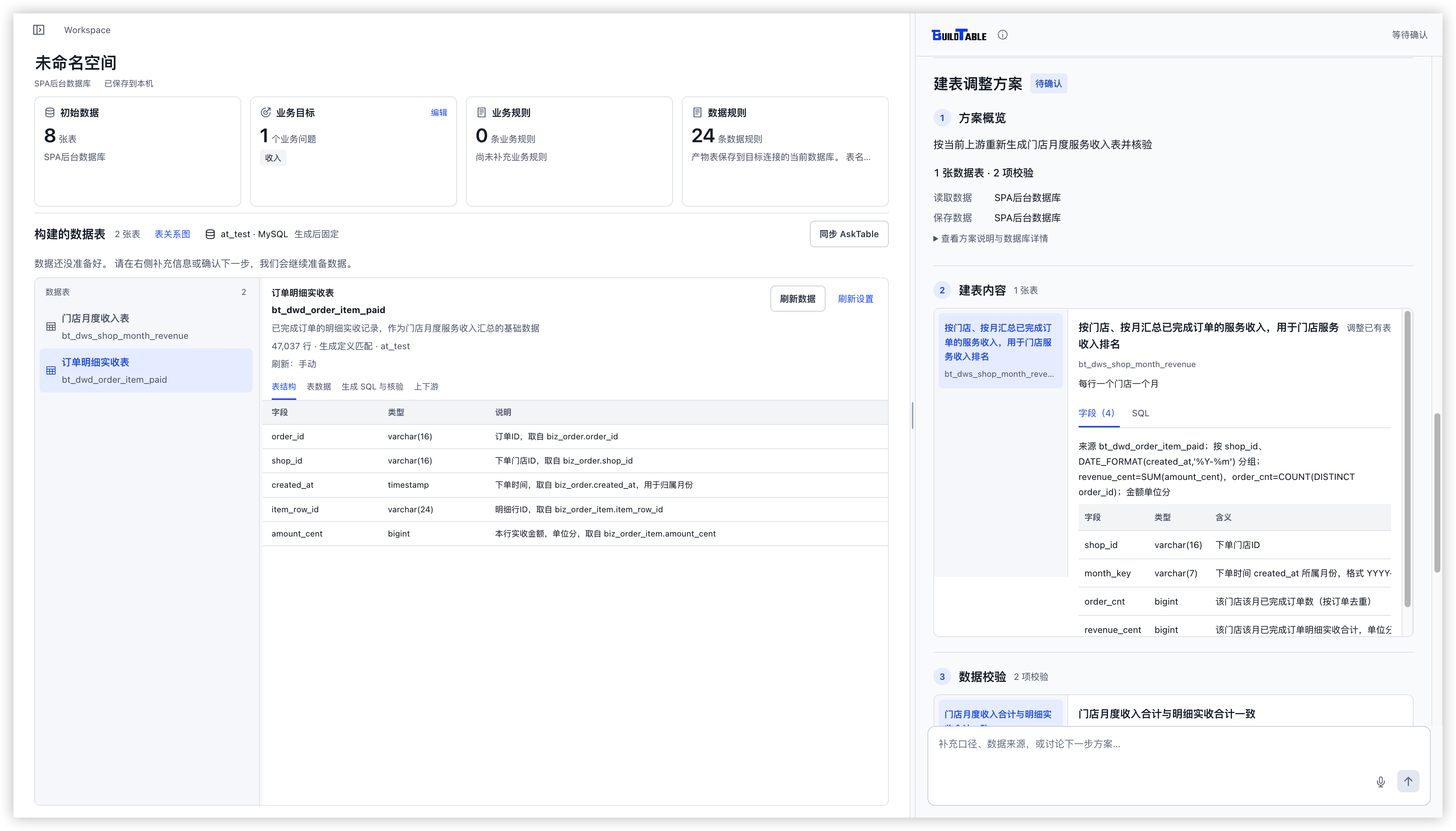 Open full-size image
 Open full-size image
Select result tables and sync to AskTable
Choose which result tables to deliver, together with their field semantics and business rules. Confirm the selection before starting the sync.
10 / 10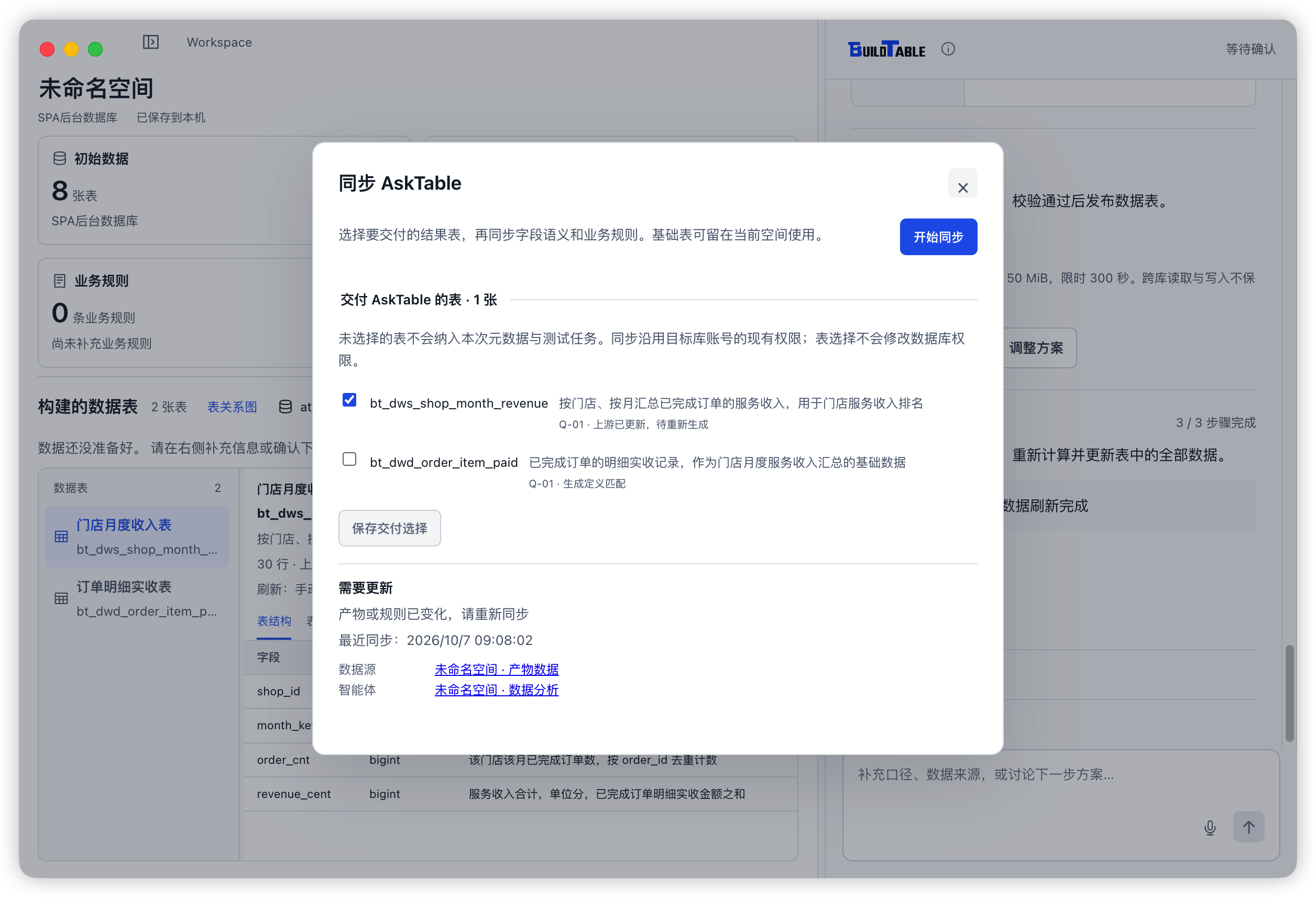 Open full-size image
Give downstream AI a prepared data foundation.
Download BuildTable Desktop to walk through these five steps, or contact us for modeling and deployment support.
Back to home